
Improving FCP by 15% only changing CSS (critical css guide)
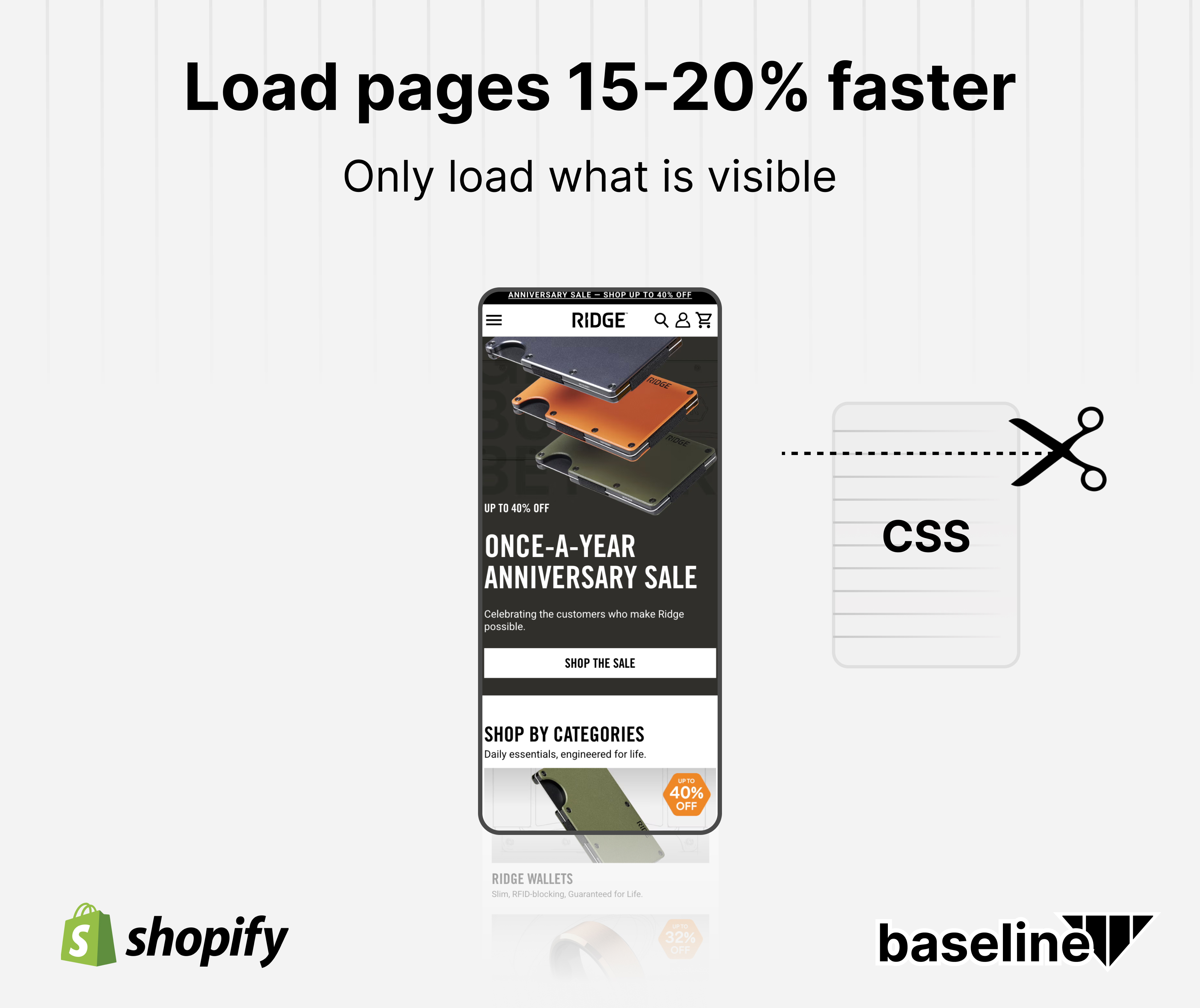
How to improve your page load by only changing CSS
Every time someone lands on your Shopify store, their browser stops everything and reads your CSS file before it shows a single pixel.
That pause is First Contentful Paint (FCP): the time from page request to the first moment anything appears on screen. On most Shopify stores it sits between 2 and 4 seconds. During that window, the visitor sees a blank page.
Critical CSS is the technique that eliminates most of that wait.
How FCP impacts revenue
FCP is the first impression your store makes.
The research on this is pretty consistent: users form their perception of a site's speed within the first second. A slow FCP triggers the same response as a slow checkout. The user hasn't seen your product yet, but the negative signal is already registered.
FCP also feeds directly into Interaction to Next Paint (INP) and Largest Contentful Paint (LCP), the two Core Web Vitals that Google weights most heavily in rankings. A store that fails FCP tends to fail all three.
The connection to revenue: every 100ms reduction in page load time is associated with approximately a 1% improvement in conversion rate. FCP delays of 2+ seconds mean you're leaving a measurable gap between traffic and revenue before the page has finished appearing.
How CSS feeds into slow FCP
Browsers are sequential by default (they work line-by-line). When they encounter a CSS <link> tag in the <head>, they pause rendering and download the full stylesheet before showing anything.
This is correct behaviour — the browser doesn't know which styles affect above-the-fold content and which don't, so it loads all of them to be safe.
On a typical Shopify store, the main stylesheet is 150–400KB. It contains styles for your footer, your cart drawer, your product modals, your blog pagination. None of that is needed to paint the top of the page. All of it still blocks the render.
The data from Pustelto.com's analysis of production sites: 45–53% of CSS on an average page is unused. For every 200KB stylesheet, roughly 100KB of rules are loaded and never applied on that page load.
The problem is we are waiting for all the things we dont need before displaying the stuff we DO need. Like primary images and text.
Critical CSS to the rescue
Critical CSS drastically improves the FCP because it reduces the CSS file to only the essentials.
For styles above the fold (visible on first page load) you split them into their own file, and load them separately.
The technique works in two steps:
- Inline the critical CSS directly in the
<head>as a<style>block. The browser renders this instantly, no network request needed. - Defer the full stylesheet so it loads in the background, after the page has already painted.
The result: the browser sees the inline styles and immediately renders the above-the-fold content. The rest of the CSS arrives while the user is reading or scrolling — by the time they need it, it's already there.
Important! You MUST defer the full stylesheet, or your browser will just download more render blocking files and FCP will be slower!
How to implement critical CSS on Shopify
Step 1: Extract your critical CSS
You need to identify which CSS rules apply to above-the-fold content. Two options:
Option A: Use Critical (automated)
The Critical npm package renders your page at a specific viewport and extracts only the rules that apply to visible content.
npm install critical
const critical = require('critical');

critical.generate({
  base: 'dist/',
  src: 'index.html',
  target: 'index-critical.html',
  width: 1300,
  height: 900,
});
Run this against your homepage, product page template, and collection page template separately. The above-the-fold content differs by page type.
Option B: Use Chrome DevTools Coverage tab (manual)
- Open Chrome DevTools → More tools → Coverage (
Shift+Cmd+P, type "coverage") - Click the record button, then reload the page
- The Coverage tab shows each CSS rule and whether it was used on the current viewport
- Export unused rules and work backwards to identify what's critical
For most Shopify stores, Option A gives a more reliable result since it's viewport-aware. Option B is useful for auditing what's being loaded.
Step 2: Inline the critical CSS in your theme
In Shopify Admin, go to Online Store → Themes → Edit code on a draft theme.
Open layout/theme.liquid. Find the <head> section. Add your critical CSS as an inline <style> block immediately before your main stylesheet link:
<head>
  <!-- ... other head content ... -->

  <style>
    /* === CRITICAL CSS === */
    /* Paste your extracted critical CSS here */
    body { margin: 0; font-family: var(--font-body-family); }
    .header { position: sticky; top: 0; z-index: 100; background: #fff; }
    .hero { width: 100%; aspect-ratio: 16/9; }
    /* ... rest of above-fold rules ... */
  </style>

  <!-- Deferred full stylesheet (loads async, no render blocking) -->
  <link
    rel="stylesheet"
    href="{{ 'base.css' | asset_url }}"
    media="print"
    onload="this.media='all'"
  >
  <noscript>
    <link rel="stylesheet" href="{{ 'base.css' | asset_url }}">
  </noscript>

</head>
The key parts:
media="print"tells the browser this stylesheet is only needed for print. The browser downloads it in the background without blocking render.onload="this.media='all'"switches it to apply to all media once it's loaded, so your full styles apply as soon as the file arrives.<noscript>fallback loads the full stylesheet normally for users with JavaScript disabled.
Step 3: Repeat per template
Your critical CSS will differ between:
- Homepage (hero banner, announcement bar, featured collection)
- Product pages (product image, title, price, add-to-cart button)
- Collection pages (grid header, first row of product cards)
The safest approach is a single shared critical CSS block that covers the common elements (header, fonts, base layout), plus a small template-specific block.
In Shopify you can conditionally include different critical CSS using Liquid:
<style>
  /* Shared critical styles */
  {{ 'critical-base.css' | asset_url | stylesheet_tag }}

  {% if template.name == 'product' %}
    /* Product page critical styles */
    .product-media { width: 100%; }
    .product-info { padding: 2rem; }
    .btn-add-to-cart { width: 100%; padding: 1rem; }
  {% endif %}
</style>
Measuring the impact
After implementing, check FCP in two places:
Chrome DevTools Lighthouse:
- Open an incognito window (to avoid extension interference)
- Open DevTools → Lighthouse tab
- Run a Performance audit on your homepage, product page, and collection page
- Compare FCP before and after. Target: under 1.5 seconds on desktop, under 2 seconds on mobile
Shopify Analytics → Core Web Vitals:
Navigate to Shopify Admin → Analytics → Reports → New exploration and run:
FROM web_performance
  SHOW fcp_p75_ms, lcp_p75_ms
  GROUP BY page_type WITH TOTALS
  SINCE -7d UNTIL today
  ORDER BY fcp_p75_ms DESC
  VISUALIZE fcp_p75_ms MAX 10
Compare the week before and after your change. FCP improvement on product and collection pages should be visible within 24 hours of deploying.
Common issues
Styles flash or reorder on load (FOUC)
This means your critical CSS is missing rules that affect above-the-fold layout. The full stylesheet arrives and overrides the inline styles visibly. Fix: re-run your critical CSS extraction at a wider viewport, or manually inspect which rules are being overridden.
The full stylesheet loads too late on slow connections
The media="print" technique loads the stylesheet as low priority. On very slow connections, users may scroll and hit unstyled content. Mitigation: use <link rel="preload" as="style"> alongside the deferred <link> to increase its download priority without blocking render:
<link rel="preload" href="{{ 'base.css' | asset_url }}" as="style" onload="this.rel='stylesheet'">
Theme updates overwrite your critical CSS
Shopify theme updates can reset theme.liquid. Keep a copy of your critical CSS snippet in a separate file or in a code comment block that's easy to restore.
Want us to find every performance issue on your store?
If you found this useful, we run a free site speed audit that looks at every CWV issue on your store — including render-blocking CSS, LCP bottlenecks, and app bloat — and tells you exactly what to fix first.