
Boost Site Speed 15% Cutting Render-Blocking Scripts
How to boost site speed 15% cutting render-blocking scripts. Free code snippet included.
Master the fundamentals that actually move the needle on Core Web Vitals
Site speed isn't just a nice-to-have anymore—it's a business-critical metric that directly impacts your conversion rates, search rankings, and user experience. While there are countless optimization techniques out there, the fundamentals remain king. After working on hundreds of websites, one truth stands out: properly loading scripts outweighs fancy optimizations every single time.
Why Scripts Are Your Site's Biggest Speed Killers
While images might be larger files, scripts are the real performance villains. Here's why:
- Images: Large files that are easy to process once downloaded
- Scripts: Smaller files that hog resources for extended periods because they must download, parse, execute, and often trigger additional network requests
Scripts don't just slow down your initial load—they can completely block your page from rendering, leaving users staring at a blank white screen while your tracking pixels and chat widgets load.
Understanding the Core Web Vitals Impact
Site speed is measured across five core metrics that combine for a total performance score of 100%. Render-blocking scripts are the biggest needle-mover for two critical metrics:
First Contentual Paint (FCP)
This measures how long users see a blank white screen before any content appears. Render-blocking scripts literally prevent your page from displaying anything until they finish loading and executing. By the time these scripts complete, users may have already bounced.
Total Blocking Time (TBT)
This measures how laggy your site feels when users scroll or interact. When the browser is busy processing heavy scripts, it can't prioritize user interactions, causing noticeable delays between screen updates.
The fix: Prioritize what matters most. Let your product images and key content load before your cart abandonment apps and currency converters kick in.
The Render-Blocking Script Analyzer
I've created a simple JavaScript diagnostic tool that you can run on any website to identify render-blocking scripts. Here's how it works:
What Makes a Script Render-Blocking?
A script is considered render-blocking if it:
- Has a
srcattribute (external script) - Lacks both
asyncanddeferattributes - Is present in the document during initial page load
Using the Script
- Open your website in Chrome or Firefox
- Open Developer Tools (F12 or right-click → Inspect)
- Go to the Console tab
- Copy and paste the entire script below and press Enter
/**
* This script analyzes the entire page to identify and report on
* render-blocking JavaScript files.
*
* A script is considered render-blocking if it is present in the document
* and does not have the 'async' or 'defer' attributes.
*
* The script will output a table to the console with the following details
* for each render-blocking script:
* - URL
* - Domain (now simplified to remove subdomains)
* - File Size (in kilobytes, from the Content-Length header)
*
* To use this script, simply copy and paste the entire code block into
* your browser's developer tools console and press Enter.
*/
(async () => {
// A utility function to fetch the file size of a given URL.
// It uses the HEAD method to avoid downloading the entire file.
const getFileSize = async (url) => {
try {
const response = await fetch(url, { method: 'HEAD' });
if (response.ok) {
const contentLength = response.headers.get('content-length');
return contentLength ? parseInt(contentLength, 10) : 'N/A';
}
} catch (error) {
console.error(`Could not fetch size for ${url}:`, error);
}
return 'Unavailable';
};
// An array to hold information about the render-blocking scripts found.
const renderBlockingScripts = [];
// Select all script tags with a 'src' attribute anywhere in the document.
const scriptElements = document.querySelectorAll('script[src]');
// Filter for scripts that are render-blocking.
// A script is render-blocking if it lacks 'async' and 'defer' attributes.
const blockingScripts = Array.from(scriptElements).filter(script =>
!script.hasAttribute('async') && !script.hasAttribute('defer')
);
// If no render-blocking scripts are found, let the user know.
if (blockingScripts.length === 0) {
console.log('🎉 No render-blocking scripts were found on the entire page. Good job!');
return;
}
// Process each render-blocking script to gather details.
const promises = blockingScripts.map(async (script) => {
const url = script.src;
let domain = 'Unknown';
try {
// Get the full hostname and then extract the top-level domain.
const hostname = new URL(url).hostname;
const parts = hostname.split('.');
// Handle simple domains like 'localhost' or single-level domains.
if (parts.length > 1) {
domain = parts.slice(-2).join('.');
} else {
domain = hostname;
}
} catch (e) {
// This handles cases where the src is a relative path.
domain = window.location.hostname.split('.').slice(-2).join('.');
}
const fileSizeInBytes = await getFileSize(url);
// Convert the file size from bytes to KB.
const fileSizeInKB = typeof fileSizeInBytes === 'number'
? (fileSizeInBytes / 1024).toFixed(2)
: fileSizeInBytes;
renderBlockingScripts.push({
URL: url,
Domain: domain,
'File Size (KB)': fileSizeInKB
});
});
// Wait for all file size fetches to complete.
await Promise.all(promises);
// Output the results as a formatted table in the console.
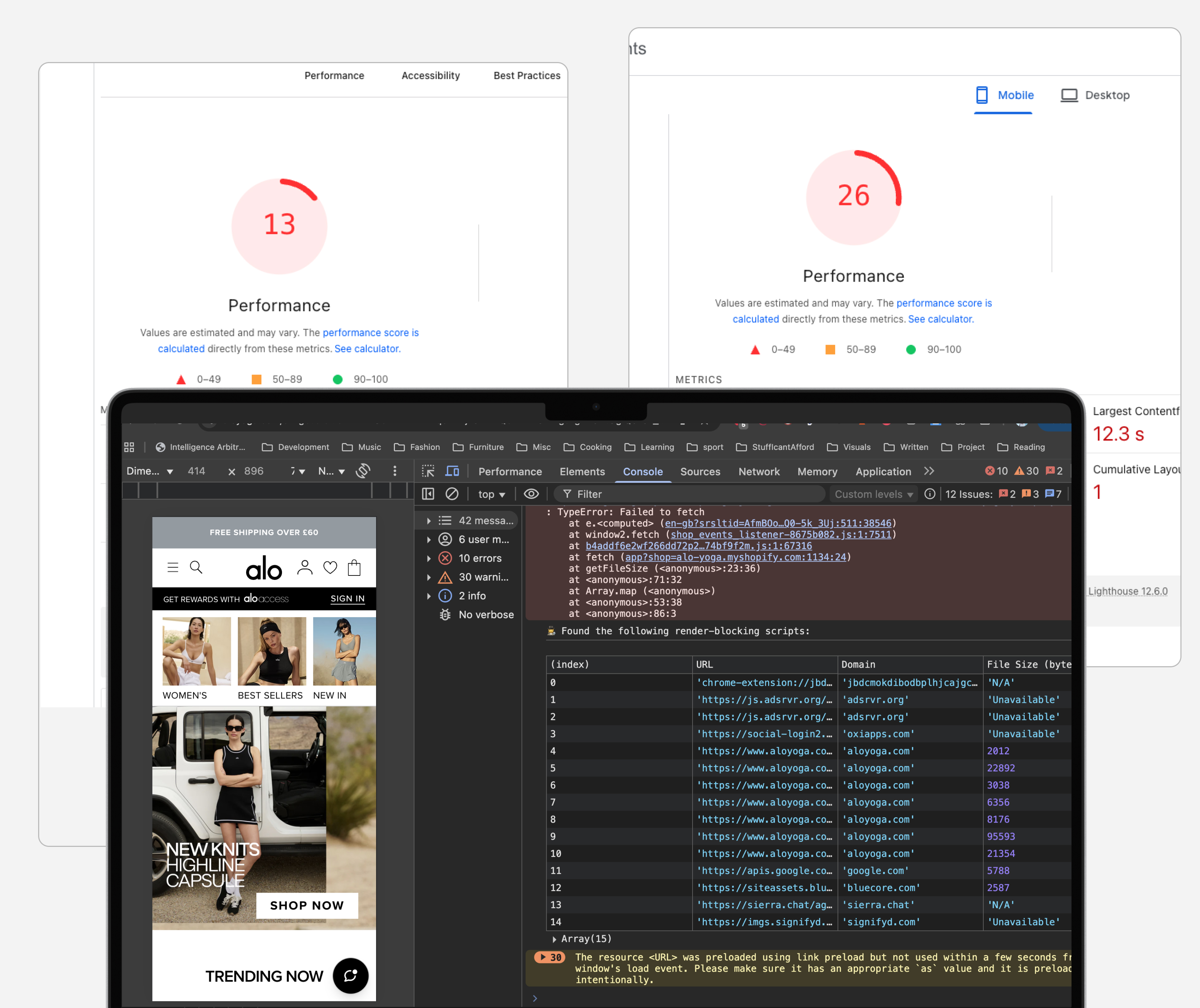
console.log('🕵️♀️ Found the following render-blocking scripts:');
console.table(renderBlockingScripts);
})();
 image.png
Interpreting Your Results
After running the script, you'll see a table showing:
- URL: The full path to each render-blocking script
- Domain: The service or platform providing the script
- File Size (KB): How large each script is
Red Flags to Look For
Large file sizes: Scripts over 50KB that are render-blocking
Multiple scripts from the same domain: Often indicates poor implementation
Third-party tracking scripts: Analytics, chat widgets, and marketing tools loading synchronously
A/B testing tools: Often the worst offenders for render-blocking
How to Fix Render-Blocking Scripts
1. Add async or defer Attributes
Async: Script downloads in parallel and executes immediately when ready
<script src="script.js" async></script>
Defer: Script downloads in parallel but waits to execute until HTML parsing is complete
<script src="script.js" defer></script>
2. Load Non-Critical Scripts Later
Use JavaScript to dynamically load scripts after your page has rendered:
// Load script after page load
window.addEventListener('load', () => {
    const script = document.createElement('script');
    script.src = 'non-critical-script.js';
    document.head.appendChild(script);
});
3. Inline Critical Scripts
For small, essential scripts (under 1KB), consider inlining them directly in your HTML to eliminate the network request entirely.
4. Remove Unnecessary Scripts
This is often the biggest win. Ask yourself:
- Do we actually use this tool's data?
- Is this script generating revenue?
- Could we achieve the same result with a lighter alternative?
Strategic Script Management for Peak Seasons
During high-traffic periods like Black Friday Cyber Monday (BFCM), consider implementing a "performance-first" approach:
Cut the Fat Temporarily
- A/B testing tools: Pause experiments during peak sales
- Customer surveys: Delay feedback collection until after the rush
- Non-essential widgets: Remove chat bots, recommendation engines, and social proof apps temporarily
Focus on Revenue-Critical Scripts Only
Keep only the scripts that directly contribute to conversions:
- Payment processing
- Essential tracking (conversion tracking, not every micro-interaction)
- Core functionality (cart, checkout)
Remember: You can always add these back after peak season ends.
The Business Case for Script Optimization
A 15% improvement in site speed typically translates to:
- 2-7% increase in conversion rates
- Improved search rankings (Core Web Vitals are a Google ranking factor)
- Reduced bounce rates (especially on mobile)
- Better user experience leading to higher customer satisfaction
Getting Started
- Run the diagnostic script on your homepage and key landing pages
- Identify the biggest offenders (large files, multiple scripts from same domain)
- Prioritize by business impact (revenue-generating vs. nice-to-have)
- Implement fixes systematically (start with async/defer, then remove unnecessary scripts)
- Test and measure the impact on your Core Web Vitals
Next Steps
Site speed optimization is an ongoing process, not a one-time fix. Start with the fundamentals—properly loading scripts—before moving on to advanced techniques like code splitting, image optimization, or CDN configuration.
The script above will help you identify the low-hanging fruit. Combined with a critical eye toward what scripts actually drive business value, you'll be well on your way to a faster, more conversion-friendly website.
Ready to dive deeper into site speed optimization? The fundamentals always win.